Showing posts with label error. Show all posts

Tuesday, 12 May 2026

How to Fix Windows Update Errors Like a Pro (Windows 10 & 11 Guide)


How to Fix Windows Update Error (Complete Pro Guide)

Windows Update errors can be incredibly frustrating. One moment your PC is working fine, and the next, you're staring at messages like:

  • “Windows Update failed”

  • “Something went wrong”

  • “Error code 0x80070057”

  • “Updates couldn’t be completed”

  • “Undoing changes made to your computer”

Friday, 17 January 2025

is rcs encrypted:How Secure Are Your Messages?

Is RCS Encrypted?: background

Rich Communication Services (RCS) has emerged as a modern alternative to SMS, offering enhanced messaging capabilities like read receipts, typing indicators, high-resolution media sharing, and group chats. With its growing adoption, particularly on Android devices, many users are asking an important question: Is RCS encrypted? Let’s dive into the details to understand the security aspects of RCS.

is-rcs-encrypted-How-Secure-Are-Your- Messages.jpg

. Is RCS really end-to-end encrypted?

RCS (Rich Communication Services) can support end-to-end encryption (E2EE) for one-on-one chats, but this depends on the messaging app and service provider. For example, Google Messages offers E2EE, provided both users have it enabled. However, group chats and unsupported apps may not offer the same level of encryption. This means that while RCS can be encrypted, it's not always guaranteed.


2. Is RCS always encrypted?

No, RCS is not always encrypted. While platforms like Google Messages provide E2EE in certain scenarios (e.g., one-on-one chats with both users using compatible apps), encryption depends on the app, network provider, and whether both users meet all the requirements. If any of these factors are missing, RCS messages may only be encrypted in transit or not encrypted at all.


3. Is RCS more secure than SMS?

Yes, RCS is generally more secure than SMS. SMS lacks encryption entirely, meaning messages can be intercepted or accessed by service providers. RCS improves on this by offering encryption in transit and, in some cases, end-to-end encryption. However, RCS still relies on internet connectivity and may have vulnerabilities if E2EE isn’t applied. Therefore, while RCS is a significant step up, it’s not foolproof.

Is RCS better than WhatsApp?

RCS (Rich Communication Services) and WhatsApp serve different purposes. RCS enhances traditional SMS by adding features like read receipts, typing indicators, and media sharing, making it similar to chat apps. However, WhatsApp offers more advanced features like end-to-end encryption, cross-platform compatibility, and global availability without carrier restrictions. RCS depends on your carrier and phone compatibility, while WhatsApp works over the internet, making it more accessible and versatile for most users.

is-rcs-encrypted-How-Secure-Are-Your- Messages.jpg

Is RCS replacing SMS?

RCS is gradually replacing SMS as a more modern messaging standard. It offers enhanced features like group chats, high-quality media sharing, and a more interactive experience. However, RCS adoption is not universal, as it depends on carrier support, device compatibility, and internet connectivity. SMS remains the fallback option for basic communication, especially in areas without internet access.

What is the safest SMS app?

The safest SMS apps are those that prioritize security and privacy. Apps like Signal and WhatsApp (for internet-based messaging) offer end-to-end encryption, ensuring that only the sender and recipient can read the messages. For RCS or traditional SMS, Google Messages with its RCS-enabled encryption provides a secure option, though it still depends on carrier and device support.

Who owns RCS messaging?

No single entity owns RCS messaging. It is a messaging protocol developed by the GSMA (GSM Association) and implemented by mobile carriers, phone manufacturers, and software developers worldwide. Google has been a major driving force in pushing RCS adoption through its Google Messages app.

What does end-to-end encrypted mean?

End-to-end encryption means that only the sender and the intended recipient(s) can read the messages. The data is encrypted on the sender's device and decrypted only on the recipient's device. Even service providers, hackers, or governments cannot access the content in transit. This ensures maximum privacy and security for sensitive communication.

Does RCS work without internet?

No, RCS requires an internet connection, either through Wi-Fi or mobile data, to function. Unlike SMS, which operates over cellular networks without needing internet, RCS relies on IP-based protocols to enable its advanced features. If there’s no internet access, messages revert to SMS or MMS.

Understanding Encryption in Messaging

Encryption ensures that messages are secured and can only be read by the intended recipient.

The two primary forms of encryption are:

  1. In-Transit Encryption: Protects messages while they are being sent over the network.

  2. End-to-End Encryption (E2EE): Ensures that only the sender and recipient can read the messages. Not even the service provider can access the message content.

Now, let’s see where RCS stands in terms of encryption.

is-rcs-encrypted-How-Secure-Are-Your- Messages.jpg

RCS and Encryption

When RCS was first introduced, it lacked end-to-end encryption, making it less secure compared to platforms like WhatsApp, Signal, or iMessage.

Early implementations of RCS relied only on in-transit encryption, meaning messages were protected while being transmitted over the network but could still be accessed by the service provider or intercepted if stored on servers.

However, recognizing the growing demand for privacy, Google—a significant proponent of RCS—began rolling out end-to-end encryption for RCS in its Google Messages app starting in 2020. Here are the key points to consider:

  1. End-to-End Encryption in Google Messages:

    • Google Messages supports E2EE for one-on-one chats, provided both users have RCS enabled and are using the Google Messages app.

    • This encryption ensures that no one, not even Google, can access the content of your messages.

  2. Group Chats:

    • As of now, end-to-end encryption for RCS group chats is still in development or limited in availability.

    • Users should be cautious while sharing sensitive information in group conversations until E2EE becomes standard across all chat types.

  3. Interoperability Challenges:

    • RCS encryption depends on the compatibility of devices and service providers. If one participant’s device or carrier doesn’t fully support RCS or E2EE, the conversation might default to standard, unencrypted SMS/MMS.

How to Ensure Your RCS Messages Are Encrypted

To maximize security while using RCS, follow these tips:

  1. Use Google Messages: Ensure both you and your contacts are using the official Google Messages app with RCS chat features enabled.

  2. Check the Lock Icon: Encrypted conversations in Google Messages display a lock icon next to the send button.

  3. Update Your Apps and OS: Regular updates ensure you have the latest security patches and features.

  4. Verify Encryption Status: Google Messages allows users to verify if their chat is end-to-end encrypted in the chat settings.

is-rcs-encrypted-How-Secure-Are-Your- Messages.jpg

FAQ: Understanding RCS and Messaging Features

1. What is RCS messaging?

RCS (Rich Communication Services) is an upgraded version of SMS that offers features like group chats, high-quality media sharing, read receipts, and typing indicators. It bridges the gap between traditional SMS and modern messaging apps.


2. How is RCS different from SMS?

RCS is more advanced than SMS, allowing users to share images, videos, and documents, see when someone is typing, and get delivery/read receipts. SMS is text-only, limited to 160 characters per message, and lacks these modern features.


3. Is RCS better than WhatsApp or other messaging apps?

RCS brings SMS closer to WhatsApp by offering features like media sharing and typing indicators. However, apps like WhatsApp, Signal, or Telegram often offer superior functionality, including end-to-end encryption, cross-platform support, and broader availability.


4. Can RCS work without internet?

No, RCS requires an active internet connection (Wi-Fi or mobile data) to function. If the internet is unavailable, messages are sent as regular SMS or MMS.


5. Does RCS support end-to-end encryption?

Yes, RCS supports end-to-end encryption, but only for one-on-one chats on supported apps like Google Messages. Group chats and messages between unsupported carriers may not be encrypted.


6. Who supports RCS messaging?

RCS is supported by most major carriers, phone manufacturers, and apps like Google Messages. However, its availability varies by region, carrier, and device compatibility.


7. Can I use RCS on iPhone?

Currently, iPhones do not support RCS. Apple relies on its iMessage platform for enhanced messaging, and RCS falls back to standard SMS when communicating with non-iPhones.


8. Is RCS free?

Using RCS is typically free if you have an internet connection (Wi-Fi or mobile data). Some carriers may apply charges depending on your mobile data plan, so it’s worth checking with your provider.


9. What is the safest messaging app?

Apps like Signal and WhatsApp are considered the safest due to their default end-to-end encryption. Google Messages is also secure for RCS chats, but encryption is limited to one-on-one conversations.


10. Is RCS replacing SMS completely?

RCS is gradually replacing SMS in areas where it's supported, but it’s not yet universal. SMS remains a fallback for devices and carriers that do not support RCS or lack internet access.


11. Can I use RCS on any smartphone?

RCS requires a compatible smartphone, a supporting carrier, and an RCS enabled messaging app like Google Messages. Not all phones or carriers support RCS, so it’s not universally available.


12. How can I enable RCS on my phone?

To enable RCS:

  1. Install or update the Google Messages app (if not already on your phone).
  2. Open the app and set it as your default messaging app.
  3. Go to Settings > Chat features and enable RCS if it’s supported by your carrier and phone.

Conclusion

RCS has significantly improved the messaging experience compared to traditional SMS, but its encryption capabilities are still evolving.

With Google leading the charge, end-to-end encryption for RCS is now available for one-on-one chats in Google Messages, making it a more secure option for users. However, group chats and universal interoperability remain areas of concern. Until RCS encryption is universally implemented and supported, users should remain vigilant and consider using additional encrypted messaging apps for sensitive communications.


Thursday, 16 January 2025

5 genuine method to turn off talk back on android ?

TalkBack is a built-in screen reader on Android devices designed to assist visually impaired users. It provides spoken feedback and vibrations to help users navigate and interact with their devices without relying on the screen visually. With TalkBack enabled, users can hear descriptions of items they touch, select, or activate, enabling hands-free operation of their Android devices.

TalkBack

What is TalkBack in Android phone?

TalkBack is an accessibility feature on Android devices designed to assist people with visual impairments. It works by providing spoken feedback to describe what’s happening on the screen. When enabled, TalkBack reads out loud the items you touch, select, and activate on the phone, such as apps, settings, and buttons. This allows users to interact with their devices even if they can’t see the screen.

For example, when you swipe through different icons or buttons, TalkBack will say something like "Home button" or "Settings menu." It can also provide spoken feedback for actions like typing, notifications, and the battery status.

It’s a helpful tool for those who rely on auditory cues to navigate their devices. However, for users who don’t need it, it can sometimes be a bit distracting, and in those cases, it’s important to know how to turn it off.

What are the uses of TalkBack in Android phone?

TalkBack is a built-in screen reader in Android devices, designed primarily for individuals who are visually impaired or have difficulty interacting with touchscreens. It provides spoken feedback, audible cues, and gesture-based navigation, making the device more accessible. Here's how TalkBack is commonly used:

1. Navigating the Device

  • TalkBack reads aloud items on the screen, such as app names, buttons, and text.
  • Users can swipe and tap to navigate without needing to see the screen.

2. Typing Assistance

  • When typing, TalkBack announces the letters, words, or numbers entered.
  • Predictive text or suggestions are also read aloud for better accuracy.

3. Accessibility for Apps

  • It helps users interact with apps, including social media, messaging, and productivity tools, by describing elements on the screen.
  • Custom gestures allow quick access to key functions within supported apps.

4. Performing Actions

  • Users can perform actions like answering calls, adjusting volume, or enabling features using gesture shortcuts and voice guidance.

5. Web Browsing

  • TalkBack enables seamless web browsing by reading website content, links, headings, and more.
  • It also supports navigation by headings, paragraphs, or specific elements on web pages.

6. Customization and Braille Support

  • Users can customize TalkBack gestures to suit their needs.
  • It supports Braille displays via the BrailleBack app for individuals who prefer tactile reading.

7. Learning and Productivity

  • Helps visually impaired students or professionals read documents, emails, or PDFs.
  • Assists with note-taking and organizing schedules.

8. Independence

  • TalkBack empowers users to operate their devices independently, from making calls to shopping online.

By providing auditory feedback and gesture based navigation, TalkBack ensures inclusivity and ease of use for people with visual challenges, allowing them to interact with technology effectively.

How do I stop voice control on Android? How to turn on TalkBack on Android with buttons? How do I turn off TalkBack in Redmi? How do I turn off TalkBack in nothing? How do I turn off TalkBack? How do I turn voice control off? How do I turn off VoiceOver settings? How do I turn off voice listening? How do I turn the microphone back on Android? How do I turn off the microphone on an Android? How do I get the voice back on my Android phone? How do I fix my microphone voice?

5 Ways to Turn Off TalkBack on Android

TalkBack is an accessibility feature on Android devices designed to assist visually impaired users by providing spoken feedback. While it’s a helpful tool, some users may find it activated unintentionally or want to disable it. If you’re struggling to turn off TalkBack, here are five effective methods to do so.

1. Use the Volume Key Shortcut

5-genuine-method-to-turn-off-talk-back

Many Android devices allow you to toggle TalkBack on or off using a volume key shortcut. Here’s how:

  • Step 1: Press and hold both the Volume Up and Volume Down buttons simultaneously for 3 seconds.

  • Step 2: A confirmation message will appear. Select "Turn Off" using two finger gestures.

This shortcut is the quickest way to disable TalkBack without navigating through menus.

2. Through Accessibility Settings

5-genuine-method-to-turn-off-talk-back.jpg

If the volume key shortcut doesn’t work, you can disable TalkBack via the Accessibility settings:

  • Step 1: Open the Settings app on your device. Use two fingers to scroll if TalkBack is active.

  • Step 2: Navigate to Accessibility or Additional Settings, depending on your device model.

  • Step 3: Select TalkBack and toggle it off. Confirm your choice in the pop-up dialog.

This method provides a straightforward way to manage accessibility features.

3. Using Google Assistant

5-genuine-method-to-turn-off-talk-back.jpg

If navigating the settings feels challenging, Google Assistant can assist:

  • Step 1: Activate Google Assistant by saying “Hey Google” or pressing and holding the Home button.

  • Step 2: Say “Turn off TalkBack” or type the command if needed.

  • Step 3: Follow any additional prompts to disable the feature.

Google Assistant offers a hands-free approach, especially if you’re unfamiliar with manual navigation.

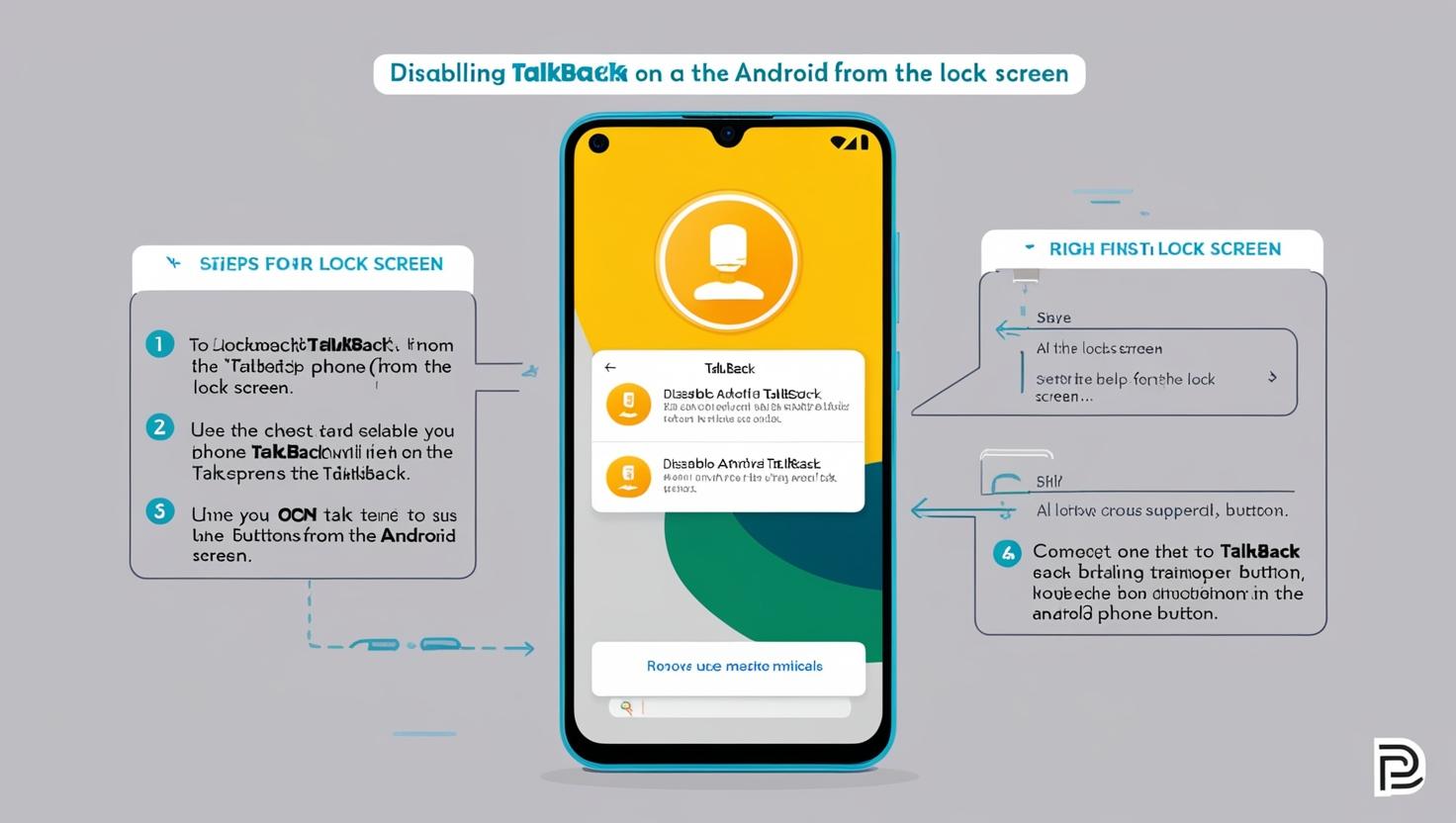
4. From the Lock Screen

TalkBack in Android

In some cases, you might need to disable TalkBack directly from the lock screen:

  • Step 1: On the lock screen, use two fingers to swipe up and unlock your device.

  • Step 2: Access the Settings app using the methods outlined above.

  • Step 3: Navigate to Accessibility and turn off TalkBack.

This method ensures you can disable TalkBack even when your device is locked.

5. Factory Reset (Last Resort)

TalkBack

TalkBack-setting

If none of the above methods work due to software issues, a factory reset might be necessary. Note that this will erase all data on your device:

  • Step 1: Backup important files to avoid data loss.

  • Step 2: Go to Settings > System > Reset Options.

  • Step 3: Select Erase All Data (Factory Reset) and confirm.

After resetting, TalkBack will be disabled by default. Reconfigure your device carefully to avoid reactivating it unintentionally.

FAQ and Answers:how to turn off talk back on android?

  1. How do I stop voice control on Android?
    Go to Settings > Accessibility > Voice Control, and turn it off.

  2. How to turn on TalkBack on Android with buttons?
    Press and hold Volume Up + Volume Down buttons for 3 seconds to toggle TalkBack.

  3. How do I turn off TalkBack in Redmi?
    Go to Settings > Additional Settings > Accessibility > TalkBack, and disable it.

  4. How do I turn off TalkBack in Nothing?
    Navigate to Settings > Accessibility > TalkBack, and turn it off.

  5. How do I turn off TalkBack?
    Open Settings > Accessibility > TalkBack, and toggle it off.

  6. How do I turn voice control off?
    Disable it from Settings > Accessibility > Voice Control.

  7. How do I turn off VoiceOver settings?
    Go to Settings > Accessibility > VoiceOver, and disable the feature (specific to iOS).

  8. How do I turn off voice listening?
    Disable voice listening from Settings > Google > Voice > Hey Google, and turn it off.

  9. How do I turn the microphone back on Android?
    Check Settings > Apps > Permissions, and allow microphone access for specific apps.

  10. How do I turn off the microphone on an Android?
    Navigate to Settings > Apps > Permissions, and deny microphone access for specific apps.

  11. How do I get the voice back on my Android phone?
    Ensure the volume is up, and check Settings > Sound & Vibration > Media Volume.

  12. How do I fix my microphone voice?
    Clean the microphone, restart your phone, or check Settings > Apps > Permissions to ensure apps have microphone access.

Conclusion

Disabling TalkBack on an Android device can be simple when you know the right steps. Whether you use shortcuts, settings, or Google Assistant, each method is tailored to different levels of accessibility and technical comfort. By following these steps, you can efficiently turn off TalkBack and restore your device to its standard functionality.

Wednesday, 8 January 2025

how to switch from sms to rcs on android (samsung+Truecaller)-2025?

Switching from SMS to RCS on Android enhances your messaging experience with features like read receipts, group chats, and media transfers. Follow this guide to enable RCS using the Google Messages app, ensuring your carrier supports RCS and your phone is set up correctly."

How to Switch from SMS to RCS on Android-2025?

Switching from traditional SMS (Short Messaging Service) to RCS (Rich Communication Services) allows you to enjoy enhanced messaging features like read receipts, typing indicators, and media sharing without relying on third-party apps. This guide will walk you through the steps to enable RCS on your Samsung Android device using Truecaller in 2025.

How-to-Switch-from-SMS-to-RCS-on- Android-2025.jpg

What is RCS?

RCS is the next-generation messaging protocol that upgrades the traditional SMS experience. It enables features such as:

  • Rich media sharing: Share high-quality images, videos, and audio.

  • Typing indicators: See when someone is typing.

What is RCS?
What is RCS?
  • Read receipts: Know when your message has been read.

  • Group chats: Create dynamic group conversations.


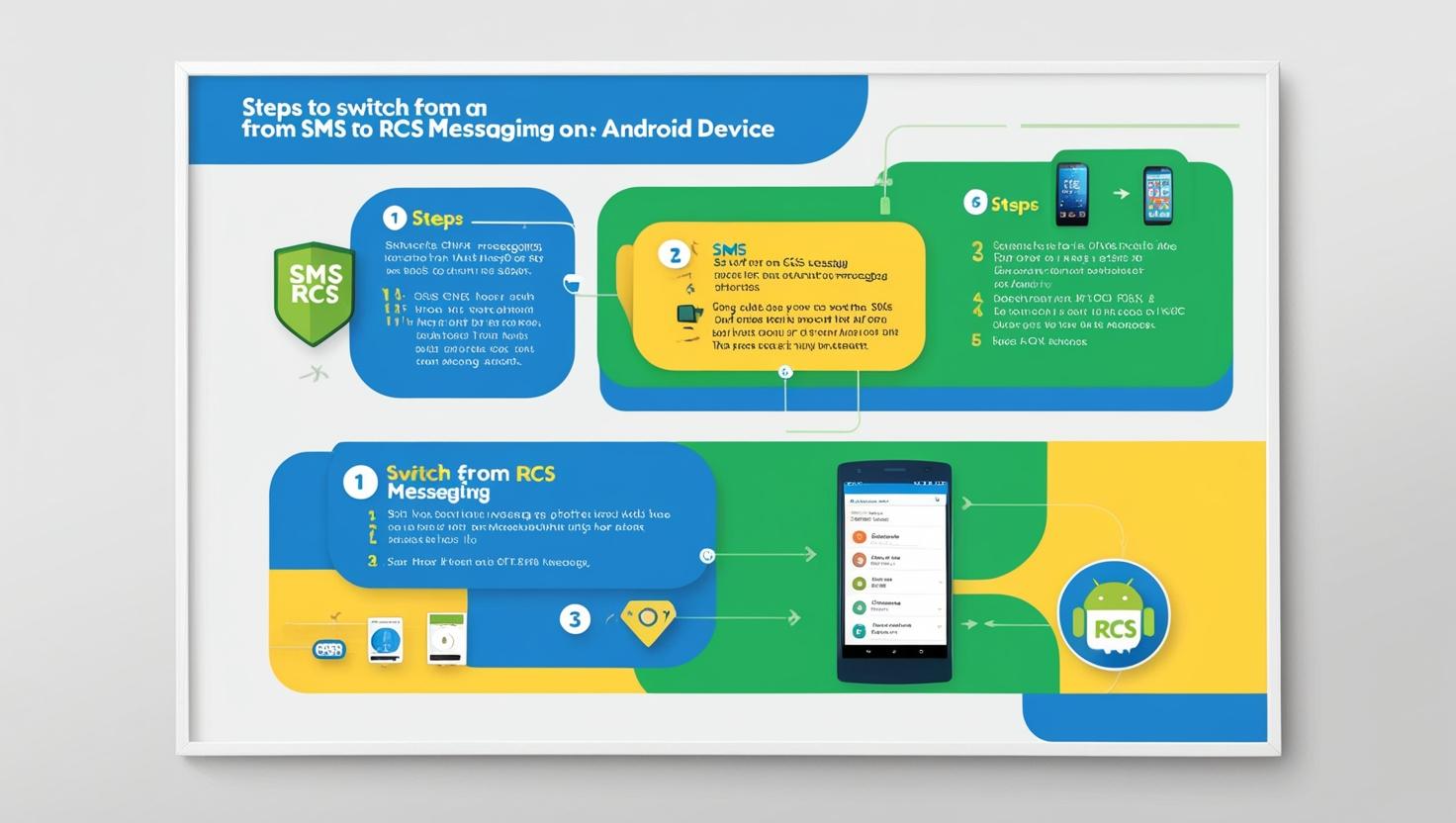
Step-by-Step Guide:how to switch from sms to rcs on android

how-to-switch-from-sms-to-rcs-on-android.jpg

Step 1: Check Device Compatibility

Ensure your Samsung phone supports RCS. Most modern Samsung devices (Galaxy S, Note, and A series) are RCS-ready.

Step 2: Update Truecaller and the Messaging App

  • Go to the Google Play Store.

  • Search for Truecaller and tap Update.

  • Update the default Samsung Messages app if required.

Step 3: Enable Chat Features in Samsung Messages

  1. Open the Samsung Messages app.

  2. Tap the three-dot menu (top-right corner) and go to Settings.

  3. Select Chat settings or Chat features (this option might vary).

  4. Toggle Enable Chat Features to ON.

Step 4: Set Up Truecaller as Default Messaging App (Optional)

  1. Open the Truecaller app.

  2. Tap on the hamburger menu (three lines in the top-left corner).

  3. Go to Settings > Messaging.

  4. Select Set as Default Messaging App.

This allows Truecaller to manage your messages while still supporting RCS.

Step 5: Verify Your Number for RCS

  1. When prompted, enter your phone number.

  2. Wait for the verification process to complete. This usually takes a few seconds and is automatic.

  3. Once verified, you’ll see a confirmation that RCS is enabled.

Step 6: Test RCS Features

  • Send a message to another RCS enabled contact. You’ll notice indicators such as "Delivered" and "Read."

  • Share a high-quality photo or video to test the media sharing capability.


how-to-switch-from-sms-to-rcs-on-android.jpg

Step-by-Step Guide (Alternative method):how to switch from sms to rcs on android

  1. Install Google Messages:

    • Open the Google Play Store on your Samsung device.

    • Search for "Google Messages" and install the app.

    • Once installed, open the app.

  2. Set Google Messages as Default:

    • Go to your device's settings.

    • Navigate to "Apps" or "Applications" and find "Default Apps".

    • Select "Messaging App" and choose "Google Messages" as the default.

  3. Enable RCS:

    • Open Google Messages.

    • Tap on the three-dot menu (usually found in the top-right corner).

    • Select "Settings" and then "Advanced" or "Chat features".

    • Tap on "Turn on RCS" and follow the on-screen instructions to verify your phone number via SMS.

  4. Integrate Truecaller:

    • Open the Truecaller app on your device.

    • Go to the settings within the Truecaller app.

    • Look for the option to integrate with messaging apps and enable RCS.

    • Follow the prompts to link Truecaller with Google Messages.

  5. Enjoy Enhanced Messaging:

    • Once RCS is enabled and Truecaller is integrated, you can start enjoying RCS features like read receipts, typing indicators, and high-quality media sharing.


Why Use RCS with Truecaller?

Truecaller adds a layer of spam protection and caller ID to your messaging experience. Coupling this with RCS ensures you enjoy:

  • Enhanced messaging capabilities.

  • Protection from spam and unwanted messages.


By following these steps, you can seamlessly switch from SMS to RCS on your Samsung Android device while leveraging the added features of Truecaller. Enjoy a richer, more secure, and modern messaging experience in 2025!

Frequently Asked Questions (FAQ) about Switching from SMS to RCS on Android (Samsung + Truecaller)

-how-to-switch-from-sms-to-rcs-on-android-.jpg

What is RCS and why should I switch from SMS?

RCS (Rich Communication Services) is a modern messaging protocol that upgrades traditional SMS. It offers features like read receipts, typing indicators, high-quality media sharing, and better group chats. By switching to RCS, you get a richer messaging experience similar to using apps like WhatsApp or iMessage.

How do I enable RCS on my Samsung device?

To enable RCS, follow these steps:

  1. Install Google Messages: Download and install Google Messages from the Google Play Store.

  2. Set as Default: Make Google Messages your default messaging app by going to your device's settings, then Apps, and setting Google Messages as the default.

  3. Turn on RCS: Open Google Messages, tap the three-dot menu, go to Settings > Chat features, and toggle on RCS. Follow the on-screen instructions to verify your phone number.

How can I integrate Truecaller with Google Messages for RCS?

  1. Open the Truecaller app.

  2. Go to settings within Truecaller.

  3. Find the option to integrate with messaging apps and enable RCS.

  4. Follow the prompts to link Truecaller with Google Messages.

Are there any costs involved with using RCS?

RCS uses your mobile data or Wi-Fi for sending messages and media. It doesn’t incur traditional SMS or MMS charges, but data usage may apply based on your mobile plan.

Will RCS work if my contacts do not have it enabled?

If your contacts don't have RCS enabled, your messages will be sent as regular SMS or MMS. RCS features are only available when both you and your contact have RCS enabled.

How do I know if RCS is enabled on my device?

Open Google Messages and go to Settings > Chat features. If RCS is enabled, you'll see options like read receipts and typing indicators.

Can I use RCS with other messaging apps?

RCS is primarily supported by Google Messages. To utilize RCS features, you need to use Google Messages as your default messaging app.

Conclusion

Switching from SMS to RCS on your Samsung device using Truecaller is a straightforward process that can significantly enhance your messaging experience. By following these steps, you'll be able to take advantage of RCS features and enjoy a more modern and feature rich messaging experience.

Tuesday, 17 December 2024

the fbi is warning iphone and android users to change their messaging apps?

 "Learn why the FBI is advising iPhone and Android users to switch their messaging apps. Discover the security risks, privacy concerns, and recommended steps to protect your data from potential threats."

Why The FBI Is Warning iPhone and Android Users to Change Their Messaging Apps?

In today’s hyper connected world, the messaging apps we use daily play a crucial role in communication. Recently, the FBI has issued a stern warning to iPhone and Android users, urging them to reconsider the messaging apps they use for private and professional conversations. This article delves into the reasons behind the FBI’s warning, its implications, and the steps users can take to protect their data and privacy.

the-fbi-is-warning-iphone-and-android-users-.jpg

Why Is the FBI Warning Users About Messaging Apps?

The FBI’s concern stems from vulnerabilities in popular messaging apps that could expose users to security threats. Here are the key reasons behind the warning:

  1. Weak Encryption Standards: Some messaging apps fail to implement end-to-end encryption, leaving messages vulnerable to interception.

  2. Data Harvesting: Certain apps collect excessive personal data, which can be exploited by hackers or sold to third parties.

  3. Spyware Risks: Apps with poor security protocols are prone to being hijacked for spyware installation.

  4. Unverified Developers: Many apps are developed by lesser-known companies, making their trustworthiness questionable.

  5. Government Surveillance: The FBI is also concerned about foreign apps that could potentially enable government surveillance of U.S. citizens.


Key Messaging Apps Under Scrutiny

While the FBI hasn’t named specific apps, security experts have flagged several popular platforms for potential risks. Some of these include:

  • WhatsApp: Despite its end-to-end encryption, WhatsApp has faced criticism for sharing metadata with its parent company, Meta.

  • Telegram: Known for its security features, Telegram’s default chats are not encrypted end-to-end.

  • Signal: While Signal is considered one of the most secure apps, it’s essential to stay updated with its latest versions.

  • iMessage: Exclusive to Apple devices, iMessage offers robust security but is less accessible for cross platform communication.


FBI Recommended Messaging Apps

To ensure secure communication, the FBI recommends the following:

  1. Apps with End-to-End Encryption:

    • Signal

    • Threema

    • Wire

  2. Open-Source Applications:

    • Open-source apps allow security experts to verify their code for vulnerabilities, ensuring transparency and safety.

  3. Regular Updates:

    • Always use apps that receive frequent updates to address emerging threats.


Step-by-Step Guide to Choosing a Secure Messaging App

Follow these steps to enhance your communication security:

Step 1: Research the App’s Background

  • Check the developer’s reputation.

  • Read reviews and security audits.

Step 2: Verify Encryption Standards

  • Ensure the app uses end-to-end encryption.

  • Avoid apps that store messages on their servers.

Step 3: Limit Permissions

  • Grant only necessary permissions.

  • Avoid apps that request excessive access to your device.

Step 4: Use Two Factor Authentication (2FA)

  • Enable 2FA for an added layer of security.

Step 5: Keep the App Updated

  • Regular updates fix security vulnerabilities.

  • Enable automatic updates if possible.


Common Security Mistakes to Avoid

  1. Using Default Apps: Default messaging apps often lack advanced security features.

  2. Sharing Sensitive Information: Avoid sending passwords, financial data, or personal details via messaging apps.

  3. Ignoring Permissions: Review and adjust app permissions regularly.

  4. Skipping Updates: Outdated apps are more susceptible to attacks.


FAQs About Messaging App Security

Q1: What makes an app secure?

A secure app employs end-to-end encryption, has transparent data policies, and receives regular updates.

Q2: Is WhatsApp safe to use?

WhatsApp offers end-to-end encryption, but its metadata sharing practices raise concerns.

Q3: Can I trust lesser-known apps?

Lesser-known apps can be secure if they are open-source and have been audited by security experts.

Q4: How often should I update my messaging app?

Update your app as soon as a new version is available to stay protected against vulnerabilities.

Q5: What is metadata, and why does it matter?

Metadata includes information like who you’re messaging and when, which can reveal patterns of behavior even without message content.


The Impact of Ignoring the FBI’s Warning

Failing to heed the FBI’s advice could result in:

  • Data Breaches: Personal information could be exposed to hackers.

  • Identity Theft: Hackers could use your data for fraudulent activities.

  • Loss of Privacy: Sensitive conversations could be intercepted or monitored.

  • Financial Losses: Poor security could lead to financial scams or account takeovers.


Conclusion

The FBI’s warning serves as a critical reminder for iPhone and Android users to prioritise security when choosing messaging apps. By selecting apps with strong encryption, limiting permissions, and staying informed about updates, users can safeguard their communication and personal data.


Monday, 16 December 2024

Best Android Emulator for iPhone 2025 ?


Android Emulator for iPhone 2025: A Comprehensive Guide

In recent years, the demand for Android emulators on iPhone has surged as users seek ways to run Android apps on their iOS devices. With the technological advancements of 2025, these emulators have become more efficient, offering seamless compatibility. This article dives into the world of Android emulators for iPhone, providing step-by-step instructions, benefits, use cases, and answering frequently asked questions (FAQs).

best-android-emulator-for-iphone-2025

What is an Android Emulator?

An Android emulator is a software application that mimics the Android operating system, allowing non-Android devices to run Android apps. For iPhone users, this means accessing Android apps that are otherwise unavailable on the App Store.


Why Use an Android Emulator on iPhone?

  1. Access Exclusive Android Apps: Many apps, such as customization tools and niche applications, are available only on the Google Play Store.

  2. Game Testing: Developers can test cross-platform compatibility for apps and games directly on their iPhones.

  3. Seamless Integration: Advanced emulators of 2025 offer improved performance and integration with iOS features.


Top Android Emulators for iPhone in 2025

1. iAndroid

  • Features:

    • User-friendly interface.

    • Supports most Android apps.

    • Regular updates ensure compatibility with the latest iOS versions.

  • How to Install:

    1. Download iAndroid from trusted sources.

    2. Follow the installation guide provided by the developer.

2. Appetize.io

  • Features:

    • Cloud-based emulator.

    • No installation required.

    • Ideal for app developers.

  • How to Use:

    1. Access Appetize.io through Safari.

    2. Upload your Android app APK file to start using.

3. Dalvik Emulator

  • Features:

    • Lightweight.

    • Best for running older Android apps.

  • Installation Guide:

    1. Download from the official Dalvik Emulator site.

    2. Use Cydia for sideloading if your device is jailbroken.


Step-by-Step Guide: How to Use an Android Emulator on iPhone

Step 1: Check Compatibility

Before installing, ensure your iPhone is compatible with the emulator by:

  • Checking iOS version (preferably iOS 16 or later).

  • Confirming sufficient storage space.

Step 2: Choose an Emulator

Pick the emulator that suits your needs. For casual app use, iAndroid is ideal. For professional testing, Appetize.io works best.

Step 3: Install the Emulator

  • For Appetize.io:

    1. Open Safari and navigate to the Appetize.io website.

    2. Follow on-screen prompts to upload APK files.

  • For iAndroid:

    1. Download the app package from a trusted source.

    2. Follow the installation instructions.

Step 4: Configure the Emulator

  • Adjust display settings for optimal performance.

  • Grant necessary permissions to the emulator.

Step 5: Launch Android Apps

  • Open the emulator.

  • Use the Google Play Store within the emulator to download Android apps.

Here are ten popular Android emulators for iPhone in 2025, based on their features and usability:

  1. Dalvik Emulator: Works seamlessly on iPhones and iPads, allowing smooth operation of Android apps. It is reliable but requires considerable storage space and has a complex installation process​

    .

  2. iAndroid: A classic choice supporting widgets and high-quality graphics. It's beginner-friendly but may drain your battery quickly due to high power consumption​

    .

  3. Appetize.io: A browser-based emulator ideal for app developers. It enables live previews of Android apps without the need for downloads, making it perfect for demonstrations​

    .

  4. GBA4iOS: Designed for gaming enthusiasts, it supports playing ROM files and customizing settings for an enhanced gaming experience. However, graphics quality may not be optimal​

    .

  5. ApowerMirror: Primarily a screen mirroring app, it allows you to control Android apps from your iPhone, but functionality depends on network stability​

    .

  6. iNDS Emulator: A good option for running Android games on iPhones. It has a straightforward setup but may require using third-party stores like Tweakbox for installation​

    .

  7. Bluestacks X: A newer cloud-based emulator that allows you to stream Android games to an iPhone. It's easy to use and great for casual gamers​

    .

  8. Andy Emulator: A versatile emulator that supports integration with gaming controllers. It's ideal for gaming and productivity apps​

    .

  9. Anbox: Known for its compatibility with Linux and Android apps on multiple platforms, this tool is experimental on iPhones but shows promise​

    .

  10. Phoenix OS: Although not natively for iOS, it can work with advanced setups to simulate Android experiences on iPhone​

    .

For installation steps or advanced uses, refer to sources like

ps://​.com/ios-devices/android-emulator-for-ios.html) and Airdroid. These emulators can help with gaming, app testing, or running unique Android apps on your iPhone.


Benefits of Using Android Emulators on iPhone

  1. Cost Efficiency: No need to purchase a separate Android device.

  2. Convenience: Access both iOS and Android ecosystems on one device.

  3. Enhanced Testing Environment: Ideal for developers working on cross platform apps.


Challenges and Limitations

  1. Performance Issues: Emulators may lag on older iPhone models.

  2. Security Risks: Download only from trusted sources to avoid malware.

  3. App Compatibility: Not all Android apps work seamlessly on emulators.


Frequently Asked Questions (FAQs)

1. Is it legal to use Android emulators on an iPhone?

Yes, using emulators is legal as long as you’re not violating intellectual property laws or app terms of service.

2. Do I need to jailbreak my iPhone?

Not necessarily. Some emulators, like Appetize.io, work without jailbreaking.

3. Can I install Google Play Store on my iPhone?

Emulators provide access to the Play Store within their interface, but it’s not possible to install the Play Store directly on iOS.

4. Are these emulators free?

Most emulators offer free versions with limited features, while premium versions provide full access.

5. Will using an emulator affect my iPhone’s performance?

Using resource heavy emulators may slightly impact performance, especially on older devices.

Conclusion

The advancements in 2025 have made Android emulators for iPhone more accessible and efficient. Whether you're a casual user seeking Android apps or a developer testing new applications, these tools offer unparalleled convenience. By following the steps and tips outlined in this guide, you can confidently explore the best Android emulators for iPhone and unlock the full potential of both platforms.

Sunday, 15 December 2024

How to Retrieve Deleted Text Messages on Android: 10 Best Methods?

Discover the 10 best methods to retrieve deleted text messages on Android. Step-by-step guides for using tools like Dr.Fone, Tenorshare UltData, and DiskDigger. Learn recovery tips and FAQs for effective data recovery."

Retrieve Deleted Text Messages on Android easily ?

Losing text messages on your Android device can be frustrating, especially if they contain important information. Whether accidental deletion or system issues caused the loss, there are several ways to recover those messages. This comprehensive guide covers the top 10 methods to retrieve deleted text messages on Android, ensuring that even beginners can follow along.

how-retrieve-deleted-text-messages-on-android.jpg

Why Are Deleted Messages Recoverable?

When you delete a message, it isn’t immediately removed from your device. Instead, it is marked as “available” space and overwritten by new data over time. This delay makes it possible to retrieve deleted messages using specialized tools and techniques.


10 Best Methods to Retrieve Deleted Text Messages on Android

1. Check Your Backup

One of the easiest ways to retrieve deleted text messages is by restoring a backup.

Steps to Follow:

  1. Open your Android device’s Settings.

  2. Navigate to System > Backup and Restore.

  3. Check if a backup was made before the messages were deleted.

  4. Restore your phone from the backup.

Pros: Easy and free. Cons: All current data may be overwritten.


2. Use Google Drive Backup

Google Drive often backs up SMS messages if enabled.

Steps to Follow:

  1. Open Google Drive on your Android device.

  2. Go to Backups and check for SMS backup.

  3. Restore the backup to retrieve your messages.

Tip: Enable SMS backup in Google Drive to prevent future issues.


3. Contact Your Carrier

Many mobile carriers keep copies of text messages for a limited time.

Steps to Follow:

  1. Call your carrier’s customer support.

  2. Request access to your message history.

Note: Some carriers may require legal documents for retrieval.


4. Use Third-Party Recovery Tools

Several recovery software tools can help retrieve deleted messages.

Popular Tools:

  • Dr.Fone - Data Recovery

  • Tenorshare UltData

  • DiskDigger

  • Here are the links to the popular tools for data recovery:

    1. Dr.Fone - Data Recovery: A versatile tool that recovers lost data such as photos, videos, contacts, and more from Android and iOS devices. It supports over 6,000 Android devices and also extracts data from damaged Samsung phones. Learn more and download it here: Dr.Fone - Data Recovery【12】.

    2. Tenorshare UltData: This software specializes in recovering deleted data from Android and iOS devices, including WhatsApp chats, photos, videos, and more. Visit the official page for details: Tenorshare UltData【10】.

    3. DiskDigger: A straightforward tool for recovering lost photos, videos, and documents from Android devices and other storage mediums. Learn more at: DiskDigger【11】.

    These tools are user-friendly and widely used for various recovery needs. Let me know if you'd like further assistance!

Steps to Follow (Example for Dr.Fone):

  1. Download and install Dr.Fone on your PC.

  2. Connect your Android device via USB.

  3. Select Recover from Phone and follow on-screen instructions.

  4. Preview and recover the deleted messages.

Pros: High recovery rate. Cons: Some tools require payment.


5. Enable Developer Options and USB Debugging

Using advanced features can help in data recovery.

Steps to Enable Developer Options:

  1. Go to Settings > About Phone.

  2. Tap Build Number 7 times.

  3. Navigate back to Settings > Developer Options and enable USB Debugging.

  4. Use a recovery tool to scan for deleted messages.


6. Check Archived Conversations in Messaging Apps

Some messaging apps, like Google Messages, archive conversations rather than deleting them.

Steps to Follow:

  1. Open your messaging app.

  2. Go to the Archive folder.

  3. Check for the deleted messages.


7. Use SD Card or Internal Storage

If your messages were stored on an SD card, recovery tools could scan for deleted data.

Steps to Follow:

  1. Remove the SD card from your phone.

  2. Use a recovery tool on your PC to scan the card.

  3. Recover the deleted messages.


8. Restore from Cloud Services

Some third-party apps store text messages in their cloud services.

Steps to Follow:

  1. Log in to the app’s cloud service.

  2. Navigate to the Messages section.

  3. Restore the deleted messages.


9. Recover Using Android Data Recovery Apps

Many apps on the Google Play Store can recover deleted messages.

Popular Apps:

Steps to Follow:

  1. Download and install the app.

  2. Follow the app’s instructions to scan and recover deleted messages.


10. Use ADB Commands

Advanced users can recover messages using Android Debug Bridge (ADB).

Steps to Follow:

  1. Install ADB on your PC.

  2. Enable USB Debugging on your Android.

  3. Use the command adb pull /data/data/com.android.providers.telephony/databases/mmssms.db to extract messages.

Warning: This method is technical and not recommended for beginners.


FAQs:how to retrieve deleted text message on Android

Q1: Can deleted messages be recovered without a backup? Yes, using recovery tools or contacting your carrier may help.

Q2: Are there free recovery tools available? Yes, some tools offer free versions, but they may have limitations.

Q3: Can I recover messages from a broken phone? Yes, if the phone can connect to a PC, recovery tools might work.

Q4: How can I prevent losing messages in the future? Enable automatic backups on Google Drive or third-party apps like SMS Backup & Restore.


Conclusion

Losing text messages doesn’t have to be permanent. By following these 10 methods, you’ll likely find a solution that works for your situation. Regular backups and using reliable recovery tools can save you time and frustration in the future.

Sunday, 8 December 2024

petlibro request timed out how to fixed?

Troubleshooting guide for Petlibro 'Request Timed Out' errors. Discover step-by-step solutions to connectivity issues, app fixes, and Wi-Fi setup tips. Ensure your automatic pet feeder works seamlessly!"Petlibro request timed out, fix Petlibro error, troubleshooting Petlibro, automatic pet feeder issues, Petlibro connectivity, Wi-Fi setup for Petlibro, reset Petlibro device

Troubleshooting and Resolving Petlibro "Request Timed Out" Errors


Introduction

  • Overview of fix-petlibro-request-timed-out devices and their convenience for pet owners.
  • Explanation of the "request timed out" error in the context of connectivity and app synchronisation issues.
Petlibro request timed out, fix Petlibro error, troubleshooting Petlibro, automatic pet feeder issues, Petlibro connectivity, Wi-Fi setup for Petlibro, reset Petlibro device


Understanding the "Request Timed Out" Error

  • What it means when the fix-petlibro-request-timed-out device shows a "request timed out" error.
  • Common scenarios where this error might occur (e.g., Wi-Fi disruptions, app issues).

Step-by-Step Troubleshooting Guide

  1. Check Device Connectivity

    • Ensure the  of petlibro request timed out how to fixed?  feeder is plugged in and powered properly.
    • Verify the Wi-Fi signal strength and ensure the router and feeder are within 16 feet for stable connectivity【8】.
  2. Reboot and Reset the Device

    • Steps to reboot the device and reset it to factory settings【10】.
    • How resetting can resolve configuration glitches.
  3. App-Related Solutions

    • Reinstalling the fix-petlibro-request-timed-out app and ensuring it's updated.
    • Logging in and reconnecting the device using Bluetooth or AP modes【8】.
  4. Update Network Settings

    • Configure the router to 2.4 GHz (if dual-band is available) as Petlibro feeders often work on this frequency【9】.
    • Assigning static IPs for consistent connectivity.
  5. Using Mobile Hotspots

    • Temporary fixes like connecting the feeder to a mobile hotspot for debugging【8】.

Preventive Measures

  • Regular maintenance and app updates.
  • Keeping firmware updated on the feeder.
  • Backups for feeding schedules during connectivity issues【10】.

Advanced Troubleshooting

  • Log file analysis for tech-savvy users to identify deeper issues.
  • Adjusting advanced router settings, such as enabling UPnP or changing NAT types【10】.

When to Contact Support

  • Situations that require direct manufacturer support.
  • Collecting necessary information like device model and error logs for faster resolutions【9】.
petlibro-request-timed-out-how-to-fixed


****************************************

    FLOWCHART OF THIS ARTICLE

**************************************†**

Start

Step 1: Check Power Supply

  • Is the device plugged in and turned on?
    • Yes → Proceed to Step 2
    • No → Plug in the device and retry.


Step 2: Verify Wi-Fi Signal Strength

  • Is the Wi-Fi network 2.4 GHz and within range?
    • Yes → Proceed to Step 3
    • No → Adjust router placement or settings.


Step 3: Reset the Feeder

  • Perform a factory reset.
    • Did this resolve the issue?
      • Yes → End
      • No → Proceed to Step 4


Step 4: Update the Petlibro App

  • Reinstall or update the app.
    • Did this resolve the issue?
      • Yes → End
      • No → Proceed to Step 5


Step 5: Configure Router Settings

  • Ensure 2.4 GHz is enabled, and assign a static IP.
    • Did this resolve the issue?
      • Yes → End
      • No → Proceed to Step 6


Step 6: Contact Customer Support

  • Collect device model and logs for assistance.


End

****************************************

Frequently Asked Questions (FAQs)

  1. What should I do if the feeder reconnects but doesn’t sync feeding schedules?
    • Solution: Reset schedules via the app.
  2. Can I use a 5 GHz Wi-Fi network with Petlibro feeders?
    • Answer: No, they require 2.4 GHz for compatibility.
  3. How do I perform a factory reset on my Petlibro feeder?
    • Include step-by-step instructions【8】【10】.

Conclusion

  • Summary of key takeaways for resolving "request timed out" errors.
  • Encouragement to use proper setup and maintenance practices for uninterrupted pet feeding.fix-petlibro-request-timed-out